
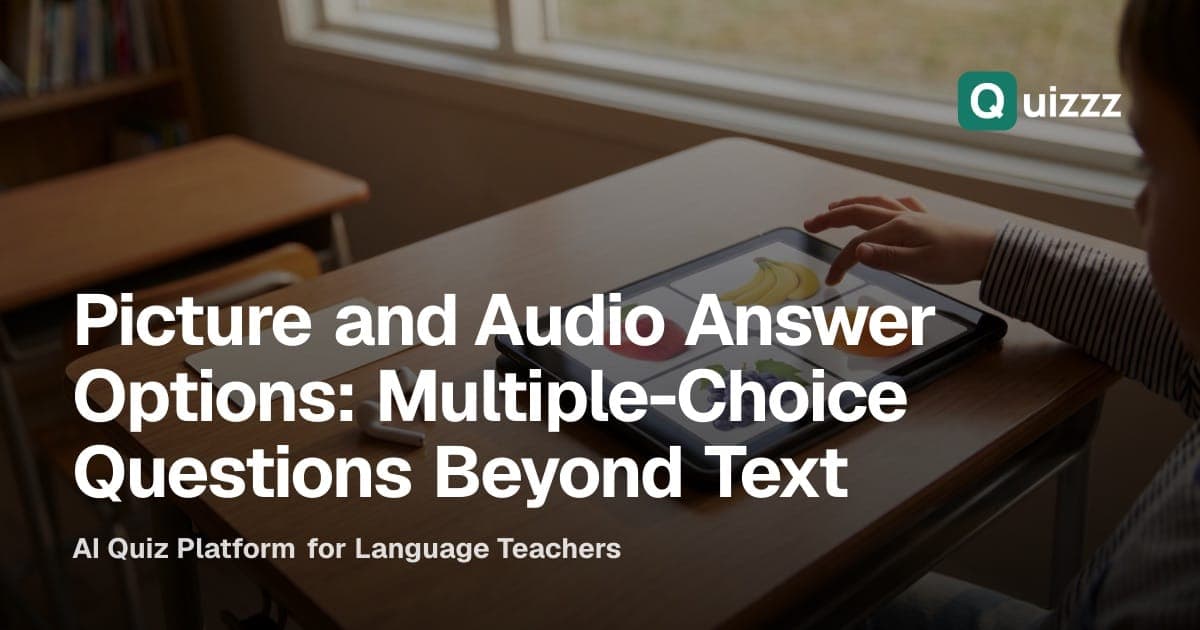
Most multiple-choice questions have four lines of text as options. That works once students can read comfortably. It works less well for young learners, for absolute beginners still learning a new script, and for anything about sound: pronunciation, tones or telling two similar words apart.
In Quizzz, each answer option can now carry a picture, an audio clip, or both, and an option can even be a picture or a sound with no text at all. This post shows what you can build with that, how to add media in the quiz builder, and a few things to know before you assign it.
👉 Multiple-choice quiz maker · Start free
Five question ideas
- Read the word, pick the picture. "りんご" with four fruit pictures as the options. Good for young learners and for checking meaning without translating into the first language.
- Which pronunciation is correct? Four audio options reading the same word, only one of them right. Useful for long vowels and double consonants in Japanese, or for tones in Chinese (mā, má, mǎ, mà).
- Minimal pairs. "Which one is ship?" with two audio options, ship and sheep. Students have to listen rather than guess from spelling.
- Listen, then pick the picture. In a listening question, the dialogue says where the speakers are meeting, and the options are four photos of places.
- Select all that apply, with pictures. "Which of these are vegetables?" with six pictures, more than one correct.
How to add pictures and audio to options
- Create the quiz as usual, by generating it from your material or writing the questions yourself.
- In the question editor, click Attach media (the paperclip) on the option you want to change.
- Choose Image to upload a picture or paste one from the clipboard, then crop it. JPEG, PNG, WebP and HEIC photos up to 8 MB work.
- Choose Add audio to upload a clip (MP3, M4A or WAV) or to have Quizzz synthesize it. The option's text is filled in as the line to read, and you can pick the voice and accent, such as US or UK English, or Taiwan or mainland Chinese.
- If the picture or sound is the whole answer, clear the option's text. An option only needs one of text, picture or audio.
This works with multiple-choice, select-all-that-apply, true/false and listening multiple-choice questions.
What students see
- Pictures appear inside the option, and students can tap to enlarge them.
- Each audio option has its own play button. Playing a clip does not select that option, so students can listen to all four before answering, and only one clip plays at a time.
- If you shuffle options, each picture and clip stays attached to its own option.
- It works in both the interactive mode (one question at a time) and the classic mode (all questions on one page).
Good to know before you assign it
- You add the media yourself. AI generation and the AI assistant connector create text options; add pictures and audio in the editor afterwards.
- Printing: the printable PDF does not include option pictures or audio. A picture-only option prints as "Picture 1" and so on, so for paper use, keep text in the options.
- Use pictures you are allowed to use: your own photos, or images whose license allows classroom use.
- Keep clips short. One word or one short sentence per option is easier to compare than a long recording.
Try it yourself
This is a live Quizzz demo. Answer the questions right here, no sign-up needed.
FAQ
Is it available on the free plan? Yes. Option media is available to every teacher. Synthesized audio follows the same audio length limits as listening questions on your plan.
Can the question itself have a picture or audio? This post is about answer options. For questions built around a recording, see how to make a listening quiz with AI audio.
Do students need an account? No. They open the link and answer on any device.
Want more on writing good options? Read how to make a multiple-choice quiz with good distractors, or create a free account and try a picture question today.
Related posts
How to Make a Vocabulary Quiz That Tests More Than Recognition
If every question is "choose the meaning", students pass by recognizing words they cannot use yet. How to mix question types in a vocabulary quiz, turn your word list into one with Quizzz, and keep students reviewing with flashcards and word games.
How to Make a Multiple-Choice Quiz with Good Distractors (Language Teachers' Guide)
The slow part of a multiple-choice quiz is writing plausible wrong answers. Five rules for good questions, distractor patterns that work in language classes, and how to turn your own material into a shareable quiz that shows which distractors students chose.

Can Claude, ChatGPT or Gemini Make an Interactive Quiz for Your Class?
Claude, ChatGPT and Gemini can all quiz a learner, in different formats. What changes when thirty students take it? What each assistant does on its own, what a class quiz usually needs, and two ways to get a shareable quiz with auto-graded objective questions.